Bob DuCharme recently converted 16 children’s books from the Project Gutenberg archive into .epub format for use with FBReader on the XO laptop. Thanks Bob!
I’ve just walked through the scenario of downloading the epub files from Bob’s download page and copying them into the correct directory for FBReader to read them. Here are the instructions with screenshots taken directly from the XO. If you see inefficiencies, please let me know because my Linux is only good enough to make me very, very dangerous to files and folders. 🙂
- Start up the Browse Activity on the XO.
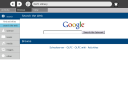
- Click in the address bar and press ctrl-A to select all the text, then type in snee.com/epubkidsbooks and press enter.
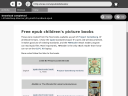
- Scroll down to the book you want to download, and click the link. You’ll see a nice countdown while the file downloads.
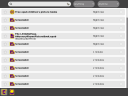
- Switch over to the Journal Activity, either by pressing the magnifying glass icon key or by going to the Home View and clicking the Journal icon at the bottom of the Home circle.
- Insert an SD card or a USB stick into the XO. The Journal shows an icon in a bottom bar when you put in external storage media.
- Locate the downloaded epub file, but don’t launch it (they launch as EToys projects, go figure.) Drag and drop the file to the SD or USB icon in the bottom bar.
- Click the Home View key and start the Terminal Activity – you have to scroll right to see the Terminal launch icon.
- Click in the Terminal window (otherwise you’ll be typing in the Terminal search box). Find the name of the external media, which is in the /media directory. For example, type:
df - You’ll see the name of your SD card or USB stick in the row with /media/ before it. You need that name to copy the epub file from the external media to the correct location for FBReader to find the book file.
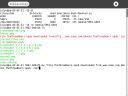
- Change to the media directory where the epub file is stored and rename the file to something shorter. For example, type:
cd /media/USBMEM

mv "File TheThreeBears.epub downloaded from_http___www.snee.com_ebooks_TheThreeBears.epub..zip" TheThreeBears.epub LittleBoPeep-ANurseryRhymePictureBook.epub - Copy the newly shortened-name file to the ~Books directory. For example, type:
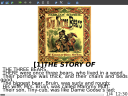
cp TheThreeBears.epub ~/Books - Launch FBReader by typing FBReader at the Terminal prompt.


Tips:
- FBReader must be installed on the XO. It’s a simple process. Go to the Terminal Activity and type:
su -c ‘rpm -i http://mirrors.kernel.org/fedora/updates/7/i386/fbreader-0.8.8-2.fc7.i386.rpm’ - If you don’t want to type a whole bunch of text on the little XO keyboard, eject the SD card or pull out the USB stick, and put it in a “regular-sized” computer, and then rename the file there.
- Or, plug in a USB keyboard with normal size key layout to do all your typing in the Terminal Activity.
- If your USB stick has a space in the name, you can’t use it with your XO. Put it into another computer and rename it without a space.