Welcome to Anne Gentle's just write click blog

RSS Subscribe to RSS

XO BookSprint instructions

Adam Hyde of FLOSS Manuals wrote up these instructions for how to get involved with the BookSprint going on this week. I’m hoping to write blog entries that describe the planning sessions and surrounding practical advice for this type of writing sprint, but I wanted to let my readers know the basic overview of how to participate this very week. Thanks Adam Hyde! Adam’s presenting at DocTrain East this fall, if you’d like to know more about FLOSS Manuals and the remixing the system enables.

XO BookSprint

This week in Austin, Texas a team of writers are gathering together to immerse themselves in a one week intensive documentation jam.

The purpose of the Book Sprint is to produce documentation in 1 week to support the forthcoming 2008 roll-out off the OLPC G1G1. The team in Austin consists of members of FLOSS Manuals (Adam Hyde, Anne Gentle), OLPC (Adam Holt), Sugar (David Farning, Walter Bender), and the Austin XO Users Group, and YOU! We have set up the online tools so you too can contribute! To make a contribution please do the following :

1. Register
To contribute to the documentation you can register at FLOSS Manuals :
http://en.flossmanuals.net/register

2. Contribute!
There are several manuals planned to be finished by the end of the week
(August 29) including a Sugar manual, an XO manual, and 5 Sugar
Activities manuals.  You can see the structure of the manuals here:
Sugar :
http://en.flossmanuals.net/bin/view/Sugar

XO (OLPC Hardware) :
http://en.flossmanuals.net/bin/view/XO

Sugar Activities :
http://en.flossmanuals.net/bin/view/Browse
http://en.flossmanuals.net/bin/view/Chat
http://en.flossmanuals.net/bin/view/Record
http://en.flossmanuals.net/bin/view/Terminal
http://en.flossmanuals.net/bin/view/Write

To contribute you must register and then select a manual and a chapter
to work on. if it is not marked ‘complete’ then press the edit button!
Its as simple as that.

Contributions can include cleaning up layout, spell checking, adding
images, proof reading, or taking responsibility for writing one of more
chapters. You don’t have to be a technical writer or a super geek, you
just need to know how to write.

If you need to ask us questions about how to contribute then join the
chat room listed above and ask us! We look forward to your contribution!

For more information on using FLOSS Manuals you may also wish to read
our manual :
http://en.flossmanuals.net/FLOSSManuals

3. Chat
Its a good idea to talk with us so we can help co-ordinate all
contributions. We have a chat room for this using Internet Relay Chat
(IRC). If you know how to use IRC you can connect to the following :
server : irc.freenode.net
channel : #olpc-content

If you do not know how to use IRC then visit the following web based
chat software in your browser :
http://irc.flossmanuals.net/

Information on how to use this web based chat software is here :
http://en.flossmanuals.net/FLOSSManuals/IRC


Posted on : Aug 25 2008
Tags: , , , , , , ,
Posted under OLPC |

Taking the One Laptop Per Child XO laptop to the preschool classroom
What can you teach with the XO laptop? I’m still pondering that question for US-based classrooms. I’m reading the news from Birmingham Alabama and the blog entries from Dallas-Fort Worth Texas school systems with interest. Apparently you can buy a certain minimum of XO laptops if your school district or other group wants to incorporate them into their learning activities. Sign up at http://wiki.laptop.org/go/Laptop_requests. With some grassroots fundraising efforts, a large-scale purchase of XO laptops seems attainable, perhaps even for Austin ISD.

Last week’s post with a picture of my four-year-old using the XO at our dining room table generated a response that a picture shows it all. I’d say that these pictures capture even more of the spirit of the OLPC project, showing a preschool teacher and two students have a blast with them, taking pictures of themselves, each other, and even taking pictures of the others’ XO.

I’ll also attest to the durability and sturdiness of these laptops. My son was walking quite quickly in the classroom with it (okay, maybe even running, but it’s not like he runs with scissors!) and tripped and fell with it. He was unhurt, these kids bounce back unbelievably from falls, and I was equally impressed with the complete durability that the XO displayed even when it probably took a bounce on the carpeted classroom floor.

So, what am I teaching with the XO?

My first session with the kids focused mostly on TamTamMini and Turtle Art, both auditory and visually appealing. These are four-year-olds, so they’re a little young for the target age for these laptops. The target age is about 6-12 years old. But, they figured out the touchpad quickly (and some, like my son, want the touchpad to allow for a mouseclick event when tapped like my Dell laptop responds, but not so with the XO touchpad.)

The kids also crowd around the screen and want to touch everything, which is fine, until I want to do the Turtle Art demonstration which involves clicking Project, and then clicking the icon for Samples and then waiting and then opening a sample file. But they were rewarded for their hands-off stand-off with bubbles and rainbow colors.

Turtle Art bubbles

In Turtle Art, I thought I’d always have to open the Blocks menu and drag the “clean “puzzle piece out, then click it to get the full starting effect. However, I just discovered that many of the samples have the clean block out already, it’s just hidden behind the menu. I finally figured out to click the hide, erase, or stop buttons to have the turtle stop mid-way through his task. The kids liked the Turtle Art demonstration as well and asked for more. I must admit, I didn’t feel like I was teaching them anything, but these are four-year-olds. With repetition and some more ideas we could build several learning opportunities around that Activity, I believe. I just got a great PDF file showing how to make the turtle draw letters, and I intend to use this demonstration for my next visit.

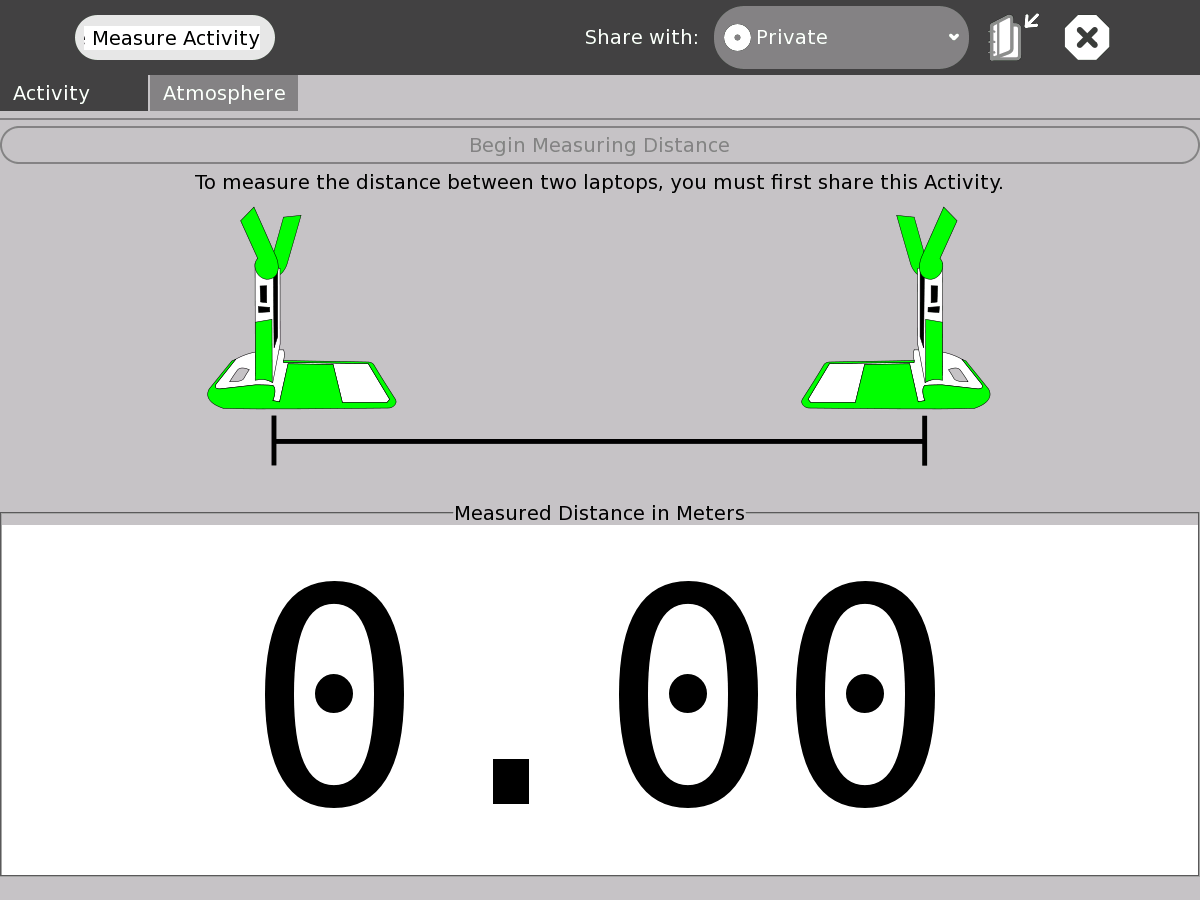
The next session I attempted to get the Acoustic Tape Measure Activity to work, but it failed miserably. I think it’s because I didn’t go to the Group view and Invite the other XO to the Activity. We’ll try again another day, after I’ve done some more testing.

Acoustic Tape Measure Activity for the XO computer

I also introduced the Record Activity and this was a huge hit for photos. I didn’t show them how to record audio or video, thinking I’d save that for another day. The pictures it takes are 640 x 480, and quite nice with natural lighting. See examples at the XO Photos group on flickr. In a future update of the XO, EXIF data will be available on the photos taken with the XO, and Flickr can then identify the source of the photo as an XO. I’ll have to upload some of the photos the kids took.

One kid even took a picture of his behind with it, reaching way back to push the O button on the game keypad (a nice shortcut way to take pictures with the Record Activity so that you don’t have to use the touchpad and X button click!) His teacher and I laughed so hard at his ingenuity and problem-solving - just to get a picture of his bottom.

Who else has taken their XO into a classroom setting, and what are you learning and teaching with the XO? I’d love to hear more, and I’ll be at SXSW Interactive and BarCamp Austin as well so please do say hi if you see me there.


Posted on : Mar 02 2008
Tags: , , , , , , , , , ,
Posted under OLPC |

How to download and copy epub files using the XO laptop

Bob DuCharme recently converted 16 children’s books from the Project Gutenberg archive into .epub format for use with FBReader on the XO laptop. Thanks Bob!

I’ve just walked through the scenario of downloading the epub files from Bob’s download page and copying them into the correct directory for FBReader to read them. Here are the instructions with screenshots taken directly from the XO. If you see inefficiencies, please let me know because my Linux is only good enough to make me very, very dangerous to files and folders. :)

  1. Start up the Browse Activity on the XO.
    browse.png
  2. Click in the address bar and press ctrl-A to select all the text, then type in snee.com/epubkidsbooks and press enter.
  3. Scroll down to the book you want to download, and click the link. You’ll see a nice countdown while the file downloads.
    sneecom.png
  4. Switch over to the Journal Activity, either by pressing the magnifying glass icon key or by going to the Home View and clicking the Journal icon at the bottom of the Home circle.
  5. Insert an SD card or a USB stick into the XO. The Journal shows an icon in a bottom bar when you put in external storage media.
  6. Locate the downloaded epub file, but don’t launch it (they launch as EToys projects, go figure.) Drag and drop the file to the SD or USB icon in the bottom bar.
    filelittlebopeep.png
  7. Click the Home View key and start the Terminal Activity - you have to scroll right to see the Terminal launch icon.
  8. Click in the Terminal window (otherwise you’ll be typing in the Terminal search box). Find the name of the external media, which is in the /media directory. For example, type:
    df
  9. You’ll see the name of your SD card or USB stick in the row with /media/ before it. You need that name to copy the epub file from the external media to the correct location for FBReader to find the book file.
    terminalmvfile.png
  10. Change to the media directory where the epub file is stored and rename the file to something shorter. For example, type:
    cd /media/USBMEM
    mv "File TheThreeBears.epub downloaded from_http___www.snee.com_ebooks_TheThreeBears.epub..zip" TheThreeBears.epub LittleBoPeep-ANurseryRhymePictureBook.epub
  11. Copy the newly shortened-name file to the ~Books directory. For example, type:
    cp TheThreeBears.epub ~/Books
  12. Launch FBReader by typing FBReader at the Terminal prompt.
    thethreebearsinfbreader.png

Tips:

  • FBReader must be installed on the XO. It’s a simple process. Go to the Terminal Activity and type:
    su -c ‘rpm -i http://mirrors.kernel.org/fedora/updates/7/i386/fbreader-0.8.8-2.fc7.i386.rpm’
  • If you don’t want to type a whole bunch of text on the little XO keyboard, eject the SD card or pull out the USB stick, and put it in a “regular-sized” computer, and then rename the file there.
  • Or, plug in a USB keyboard with normal size key layout to do all your typing in the Terminal Activity.
  • If your USB stick has a space in the name, you can’t use it with your XO. Put it into another computer and rename it without a space.

Audience considerations - writing technical doc for kids, parents, and teachers for One Laptop Per Child

I’ve recently (read:last week) learned that there is active recruiting going on for end-user documentation for One Laptop Per Child. The OLPC project, as it is also known as, is Nicholas Negroponte’s education project that hoped to build a US$100 laptop and take it to developing countries. It turns out, the product they plan to ship this fall with the Give 1 Get 1 program at xogiving.org is closer to US$188. For $400 you get to give one laptop and get another laptop. Wow, what a neat project and what an amazing difference it could make in the life of a child.

OLPC class in Nigeria

So far I am reading like crazy to try to understand the project and its audience, especially to understand the language and translation ramifications. So I have plenty to offer in background reading, such as these items:

The OLPC Wiki - OLPCWiki - wiki.laptop.org/
Laptop: A learning tool created … - www.laptop.org/laptop/
Vision: Children in the … - www.laptop.org/vision/index.shtml
Children: Children actively … - www.laptop.org/children/

FAQ for OLPC - http://wiki.laptop.org/go/OLPC_FAQ

Especially good to read are the core principles: (1) child ownership; (2) low ages; (3) saturation; (4) connection; and (5) free and open source.

Last night I was even able to emulate the Sugar operating system using a great how-to emulate Sugar and the XO article on IBM’s developerworks site.

Unfortunately, after I created my user name, clicked Next, and then clicked the colors to make my “person” blue with a yellow outline, the emulator went into some reboot loop from which I could not escape. Every subsequent attempt to start up the emulator met with an X in the middle of the emulated screen.

To the OLPC Wiki I went, searched for “emulate” and found “Using QEMU on Windows XP,” and “Emulating the XO/Help and Tips” trying to troubleshoot my problem and see if anyone else had a similar situation. Interestingly, I found the “GUI won’t start” problem in the Sugar instructions wiki page. So I am deleting the original disk image I downloaded and trying to unzip it again.

And… that was it! I’m probably going to move that bit of troubleshooting information over to that Help and Tips page. Here’s the screenshot with proof that I can emulate the Sugar environment on my Dell laptop:

XO emulated

I’m very excited to be a part of this effort. If you’re interested in helping out, and don’t mind a chaotic process with references to wiki information that’s not necessarily the final answer to your questions, and want to translate things like “The units will ship with some kind of human-powered charger that plugs into the DC socket.” into child-friendly minimal task-oriented documentation, please email me using the Contact page.


Posted on : Oct 18 2007
Tags: , , , , , , ,
Posted under techpubs |